To make a two-week employee schedule, plan two consecutive Monday-to-Sunday weeks, check both weeks separately and review the Sunday-to-Monday boundary between them. Label each week clearly. A two-week view helps you see recurring patterns and changes, but it does not remove the need to confirm availability and coverage for each date.
The Employee Schedule Maker edits one week at a time and saves dated weeks in the same browser workspace. It does not display a combined fortnight grid. This guide shows a practical two-week workflow using those existing features, with fictional assignments and checked arithmetic.
Define the dates before entering shifts
For this example, Week A runs Monday 9 November to Sunday 15 November 2026. Week B runs Monday 16 November to Sunday 22 November 2026. Write both ranges in your planning notes and use the editor’s week navigation to verify where you are working.
Collect availability covering the full period, including approved exceptions. An employee may be available Monday in Week A and unavailable Monday in Week B. Do not interpret a recurring weekday preference as proof that every date is available.
Prepare the first week
- Open the schedule maker and select Week A.
- Check employee names and roles. Add or edit employees as needed.
- Build the essential coverage, then assign flexible work.
- Review paid hours, breaks, overnight assignments and same-person overlaps.
- Compare the roster with availability and your coverage plan.
- Download a JSON backup before beginning extensive changes to the second week.
Browser storage saves the workspace locally when available, but clearing browser data can remove it. A backup is a separate file that you should keep securely. It is not automatically synchronized between devices or browsers.
Build the second week safely
Navigate to Week B. If it is empty and the pattern is useful, choose Copy Last Week. The copy action protects a destination week that already contains shifts; it should not be used to erase an existing plan. If Week B already contains work, review and edit it directly instead of assuming a copy is needed.
A copied shift is only a starting point. Change dates with different availability, adjust events and check whether the role mix is still suitable. If the two weeks are intentionally different, entering Week B independently can be clearer than copying a heavily altered pattern.
A checked two-week example
| Employee | Week A | Week B | Two-week paid total |
|---|---|---|---|
| Maya | 4 × 09:00–17:00, 30m break = 30h | 3 × 09:00–17:00, 30m break = 22.5h | 52.5h |
| Eli | 3 × 16:00–22:00, 15m break = 17.25h | 4 × 16:00–22:00, 15m break = 23h | 40.25h |
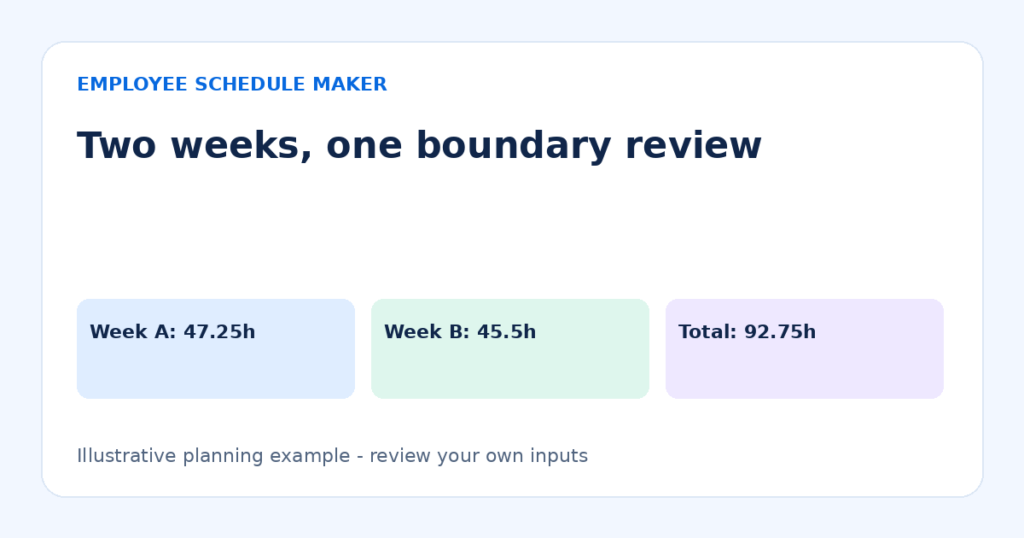
An eight-hour elapsed shift less a 30-minute unpaid break is 7.5 paid hours. A six-hour elapsed shift less 15 minutes is 5.75 paid hours. Week A therefore totals 47.25 paid hours, Week B totals 45.5, and the combined schedule total is 92.75. The editor displays each selected week’s total; add the two exported weekly totals for this separate fortnight comparison.
Do not use the two-week total to assume that a high week and a low week can be averaged for payroll or compliance purposes. The appropriate treatment depends on the applicable rules and arrangements. This example is a planning calculation only.
Review the boundary between weeks
Check Sunday overnight shifts carefully. A Sunday 22:00–Monday 06:00 assignment appears under its Sunday start date. If the same person is assigned Monday 05:30–09:00 in Week B, there is a 30-minute cross-week overlap. Reviewing only one week’s visible grid may not reveal the whole situation.
Keep both weeks’ exports available during review and compare the final Sunday assignments with the following Monday. Also review the work pattern on either side of the fortnight. The end of your planning window is not necessarily the end of an employee’s consecutive work pattern.
Read overnight shifts and unpaid breaks for the distinction between elapsed duration, paid time and start-date attribution. The tool uses entered wall-clock times and is not a timezone-aware attendance system.
Share a two-week schedule without version confusion
Print or save each week as PDF using the browser print dialog, selecting the intended week first. Name files clearly, for example “Week-A-2026-11-09-r1.pdf” and “Week-B-2026-11-16-r1.pdf.” Review print preview to make sure all employee rows and columns are included.
If you combine the files outside this tool, preserve both date ranges and revision labels. When one week changes, explain which document it replaces. A new PDF does not update older downloaded copies automatically. Use one agreed communication channel for the current version.
CSV provides tabular data for a selected week. JSON is the editable backup for the workspace, including saved weeks. The backup and sharing guide explains which file is suitable for each purpose. Do not expect a PDF or CSV to restore the whole workspace.
Common mistakes
- Editing the wrong week. Check the date range before entering or exporting shifts.
- Copying before checking exceptions. Review actual dates and availability after every copy.
- Ignoring the week boundary. Compare overnight Sunday finishes with Monday starts.
- Assuming a two-week total settles payroll questions. Keep planning totals distinct from actual work records and applicable requirements.
- Restoring an old backup casually. Restore replaces the workspace after confirmation, so first back up current work.
Reconcile a change made after Week A is shared
Suppose Maya’s Week B availability changes after you have already distributed Week A. Select Week B explicitly and edit the affected assignments there. Do not restore an older whole-workspace backup simply to retrieve the original pattern unless you intend to replace all saved weeks. A restore affects more than the currently visible grid.
After editing, compare Week B’s new total with its earlier export and check the boundary with Week A again. If an overnight Sunday assignment in Week A is involved, the correction may affect both files. State which date ranges changed and whether each earlier export remains current.
Download a fresh JSON backup after the approved edits and identify it by date or revision. Keep the two weekly sharing files separate from that backup. If another manager must edit the workspace, agree who holds the current editable copy and how changes will be reconciled; browser storage does not provide automatic collaboration or merge two managers’ edits. A clear handoff avoids accidentally replacing newer Week B work with an older copy that still contains the correct Week A roster.
Frequently asked questions
Can I display both weeks together in the editor?
The current editor is weekly. Navigate between the two saved weeks and use separate exports for review. This guide does not imply there is a fortnight view or automatic combined fortnight calculation.
Does Copy Last Week duplicate employees?
The action copies the previous week’s shifts within the existing workspace. It uses the current employee records. Review the result, particularly if employee roles or availability changed.
Can I start with a template?
Yes. Choose a relevant weekly template and review the template-loading confirmation. Loading replaces the browser workspace when confirmed, so download a JSON backup first. Build the second week only after the first is checked.
Finish with two checks, not one
Review each week for coverage and hours, then review the connection between them. That final boundary check is the main extra discipline a two-week schedule needs.