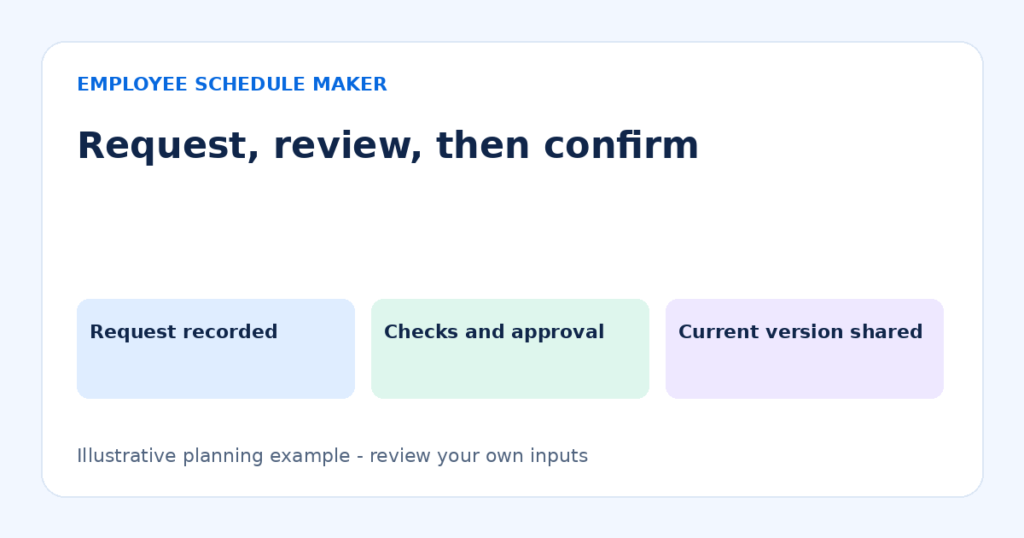
Employee schedule change requests should follow a clear process so managers can review availability, approve changes, and keep everyone informed.
A reliable employee schedule-change process records the requested change, checks coverage and availability, identifies who can approve it, and communicates one current version. A request is not an approval. A shift swap is not complete until the responsible person confirms it and the affected employees know the result.
This guide gives a lightweight process for a small team. The forms and names are fictional. Adapt the process to applicable obligations and your employment arrangements; this is operational guidance rather than legal advice.
Use one request channel
Choose a channel employees can actually use, such as a designated form or a shared process managed by a supervisor. State who monitors it and how employees should flag an urgent issue. Do not promise instant replies unless someone can provide them.
A conversation may start a request, but record its outcome in the chosen place. Otherwise one supervisor may approve a change that another never sees. Avoid putting sensitive personal explanations into a broadly shared roster or public comment thread.
Collect the minimum useful information
| Field | Example |
|---|---|
| Requested by | Maya |
| Current assignment | Wednesday 11 November, 09:00–17:00, service |
| Requested replacement | Eli to cover the assignment |
| Employee confirmation | Eli has agreed to be considered; approval pending |
| Status | Pending manager review |
| Decision and revision | Complete only after checks and approval |
Also record when the request was received and which schedule version it concerns. For an exchange, identify both assignments. “Swap Wednesday” is ambiguous if someone has two shifts or if the roster covers several weeks.
Check the change in a consistent order
1. Verify the current roster
Confirm the dates, employee and times against the approved version. A request based on an old PDF can propose changing an assignment that no longer exists. Resolve the version mismatch before editing.
2. Check availability and agreement
Confirm the proposed employee is available and understands the actual assignment, including role and finish time. A blank cell in the editor is not an availability record. Check the current availability form and any approved exceptions.
3. Check skills and coverage
Ensure the replacement can perform the required role and that the rest of the roster still works. If the change affects a lead, opener or specialist, do not assume another service employee can substitute. Check breaks and handovers as well as shift boundaries.
4. Review the employee’s other assignments
Look for overlaps, overnight finishes, changed paid totals and the surrounding work pattern. A shift may fit the selected day but conflict with a night assignment starting on the previous date. Use the conflict review checklist.
5. Record the decision
Mark approved, declined or awaiting clarification, with the responsible person and date. Explain any next action clearly. Do not leave the request appearing pending after a decision or treat silence as approval.
A worked change and hours check
Maya’s Wednesday shift is 09:00–17:00 with a 30-minute unpaid break, so it contains 7.5 paid hours. Eli currently has 22.5 planned paid hours that week. If Eli takes the full assignment and nothing else changes, Eli’s total becomes 30 and Maya’s total falls by 7.5.
The schedule-wide paid total is unchanged because the same assignment moved between employees. If the total changes, check whether the original assignment was removed, the replacement uses the same times and break, or another shift changed accidentally. An unchanged total still does not prove the swap is appropriate; the availability and role checks remain necessary.
For a true two-way exchange, calculate both employees’ before-and-after totals. Two shifts can have the same clock span but different unpaid breaks. Use the work-hour calculators rather than assuming they contribute identical paid hours.
Apply the approved change safely
- Download a JSON backup of the current workspace before significant edits.
- Select the correct week in the schedule maker.
- Edit or remove the original assignment and add the confirmed replacement.
- Check the affected employees, paid totals and overlap warnings.
- Review the coverage interval and neighboring overnight assignments.
- Export the updated schedule and label its revision.
- Notify affected employees and identify which earlier version it replaces.
The editor does not provide an approval inbox, employee notifications or a shared live team account. Keep the request and decision record in your chosen process. The tool records the roster you enter; it does not communicate approval for you.
Communicate one current version
Use a clear name such as “Week of 9 November 2026 — revision 2.” State what changed at an appropriate level: “Wednesday service assignment updated; revision 2 replaces revision 1.” Avoid sharing personal reasons in a team announcement.
Ask affected employees to acknowledge the confirmed arrangement through your normal process. An export download does not show that anyone received or read it. If a printed notice is used, replace the obsolete version rather than leaving conflicting copies nearby.
Keep backups distinct from the approved record
A JSON file preserves editable workspace data; a PDF is a fixed sharing view. Restoring an older JSON backup can bring back an earlier roster. If you restore, inspect the revision and repeat the change checks before using the result.
Browser schedules can be lost if browser data is cleared. Keep backups securely, and do not email employee data indiscriminately. The backup and sharing guide explains the existing download and restore workflow.
Common mistakes
- Editing before approval. Keep requests distinct from confirmed assignments.
- Checking only the replacement’s selected day. Review overnight and neighboring work.
- Leaving both original and replacement shifts. Compare totals and employee rows after editing.
- Reusing an ambiguous filename. Include dates and a revision label.
- Assuming the website notified employees. Communicate through your actual approved channel.
Close the request after the roster is updated
A request log is useful only if it reflects the final state. After an approved change is entered and communicated, record the revision that contains it. If a request is withdrawn before a decision, mark it withdrawn instead of leaving it pending. This prevents another supervisor from acting on an outdated proposal.
For a declined request, confirm which assignment remains in place and whether another option can be considered. Keep the explanation appropriate and avoid recording sensitive personal details that are not needed for scheduling. A clear decision is more useful than a vague note such as “discussed.”
At the end of the planning period, review repeated problems in the process: requests arriving through several channels, unclear dates, or revised files not reaching the right people. Improve one recurring step rather than adding unnecessary paperwork. The purpose of the record is to make responsibilities and the current roster clear. It does not replace timekeeping, employment records or any obligations that apply to your business.
Frequently asked questions
How do I politely ask for a shift change?
State the assignment, the requested alternative and that approval is still needed. For example, fictional Maya could write: “Could you review a change to my Wednesday 11 November service shift, 09:00–17:00? Eli is willing to be considered as cover. Please confirm whether this can be approved; I understand the current roster remains in place until a decision.” Use your actual dates and follow the agreed request channel. Share personal details privately only when appropriate.
Can employees arrange swaps themselves?
They can propose an arrangement through your process, but clarify what approval is required before it becomes the roster. Availability and qualification checks should still occur.
Should every small change create a new PDF?
Use a method that keeps one current approved version identifiable. If employees rely on downloaded or printed schedules, issue an updated version and identify the replaced one. The right communication process depends on how your team receives work assignments.
Does the tool keep an approval history?
No. Browser backups and saved weeks are not a formal audit log of requests and decisions. Maintain the approval record separately.
Make the next request easier
Write down the request channel, decision owner and update method now. A short process that is followed consistently prevents more confusion than a detailed policy nobody can find.