To prevent employee scheduling conflicts, compare proposed shifts with availability, approved absences, other assignments and role requirements before publishing. Then review changes through the same checks. An overlap warning is useful, but many conflicts do not involve overlapping clock times: a shift may be outside availability or leave a required role uncovered.
This guide separates the common conflict types and gives a practical review sequence. Examples use fictional employees and wall-clock times. The schedule maker can warn about overlapping shifts for the same employee; it does not automatically import availability, approve leave or assess legal rest requirements.
Identify the kind of conflict first
| Conflict | Example | Check |
|---|---|---|
| Time overlap | One person assigned 09:00–13:00 and 12:30–17:00 | Exact start and finish times |
| Availability mismatch | Shift starts before an employee can arrive | Current dated availability |
| Role gap | Service covered but no qualified opener | Skills and role requirements |
| Version conflict | Two different PDFs circulate | Current approved version |
| Cross-day conflict | Night shift extends into a morning shift | Following-day finish |
Calling every problem an “overlap” can send you toward the wrong fix. Moving a shift by 30 minutes may remove a double-booking while leaving the business short of a qualified lead. Resolve the underlying constraint, then review the effect on the whole team.
Check time boundaries accurately
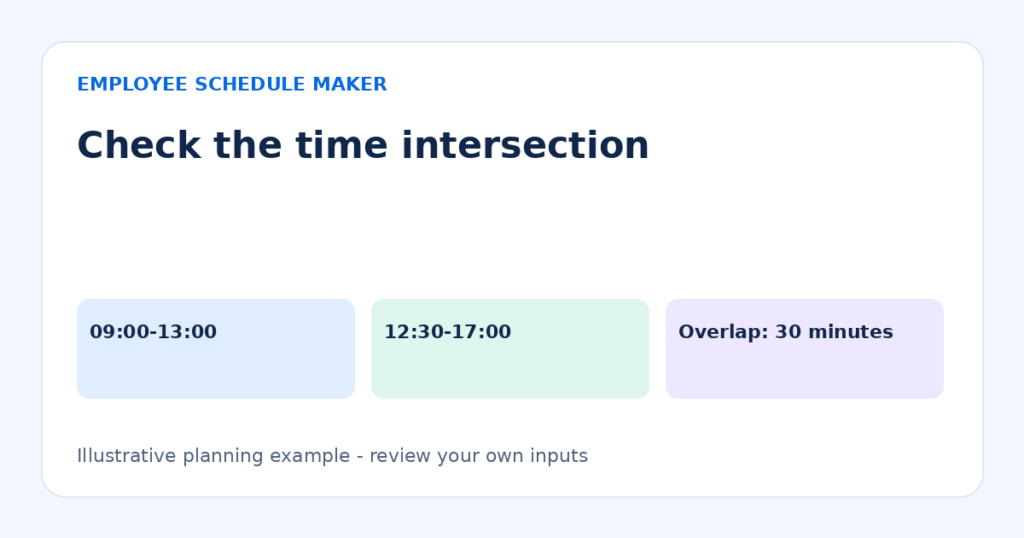
Maya is assigned Monday 09:00–13:00 and Monday 12:30–17:00. The intersection is 12:30–13:00, so the overlap is 30 minutes. If the second shift starts at 13:00, the intervals touch but do not overlap. That does not automatically make the arrangement practical: consider handovers, travel or other requirements separately.
Do not remove an overlap by entering a longer unpaid break unless that genuinely represents the arrangement. The editor stores break duration rather than a specific break interval, so it cannot prove that two assignments can share a break period. Fix the assignment times or the staffing arrangement instead of hiding the conflict in a deduction.
Check overnight shifts against the next date
Suppose Eli works Monday 22:00–Tuesday 06:00 and also has a Tuesday shift from 05:30–09:00. The assignments overlap from 05:30 to 06:00 on Tuesday. Looking only at Monday’s column would miss the problem. An overnight finish earlier on the clock than its start is treated as the following day.
With a 30-minute unpaid break, the night shift has 7.5 paid hours. The 05:30–09:00 assignment has 3.5 paid hours before any break. Adding them gives 11 planned paid hours, but those totals contain a double-booked interval. Arithmetic does not establish that the assignments are workable.
Check the boundary between Sunday and the next Monday as well as boundaries inside the displayed week. Read the overnight shifts and breaks guide for the tool’s start-date attribution and wall-clock limitations. A week view cannot be treated as proof that neighboring weeks are conflict-free.
Use a pre-publication review sequence
- Confirm the planning dates. Check that you are reviewing the intended week and not an older copy.
- Compare against availability and approved absences. Resolve missing or contradictory information before assigning work.
- Inspect same-person overlaps. Include split shifts and overnight finishes.
- Review role coverage. Check opening, busy intervals, breaks and closing work.
- Review workload and neighboring assignments. Consider the pattern and applicable requirements, not only the current screen’s total.
- Check employee names and roles. Similar names or duplicated employees can hide an accidental double assignment.
- Share one approved version. State the covered dates and how corrections should be reported.
Use a dated availability record and a coverage matrix alongside the editor. Neither is replaced by the overlap warning. For larger teams, divide the review by role or location and have one person reconcile the combined result.
Resolve a conflict without creating another
First establish which assignment is correct and which can change. Ask whether another qualified, available employee can cover, whether the work can move or whether the service plan must change. Do not treat a blank schedule cell as proof that someone is available.
After making a change, repeat the checks for the affected employee and interval. Moving Maya’s finish to 12:30 resolves the earlier overlap example, but it may remove needed service coverage from 12:30 to 13:00. Reassigning the later shift to Eli may introduce a conflict with Eli’s existing work.
Record the confirmed change and notify the people affected. Avoid sending a revised file with the same ambiguous name as an old file. A date and revision label, such as “Week of 9 November — revision 2,” make the current version easier to identify.
Protect the current workspace before major edits
Download a JSON backup before testing a different template or making extensive changes. Browser-stored schedules can be lost if browser data is cleared, and a PDF cannot restore editable employees and shifts. The backup and sharing guide explains the distinction between file formats.
Restoring a backup replaces the browser workspace after confirmation. Review its dates and contents before treating it as current. A backup from an earlier revision can reintroduce the conflict you just fixed, even if the restore itself succeeds.
Check a proposed correction with a second view
After fixing a conflict, inspect both the employee view and the coverage view. In the earlier Maya example, reducing the first shift to 09:00–12:30 removes the overlap with 12:30–17:00. The two assignments now meet exactly, but they may represent the same continuous work split across two entries. Confirm that two records are intended and that unpaid breaks have not been deducted twice by mistake.
Then compare the role coverage during that interval. If the two entries represent different locations, a zero-minute gap may be impractical even though the intervals do not overlap. If they represent two roles in one location, confirm when responsibility changes and whether another worker is needed during handover.
Finally reload the saved roster and inspect the exported version before sharing it. A correction made in a temporary template preview is not automatically the current editor workspace. Confirm which workspace you edited and whether the intended file contains the correction. This check catches a different class of error: a correct change that was made in the wrong version.
Frequently asked questions
Why can a schedule have no overlap warnings and still be wrong?
The tool checks shift intervals for the same employee. Availability, skill coverage, approved leave and practical travel time are separate inputs requiring review. An empty warning list is not a complete approval.
Are back-to-back shifts automatically safe?
They do not overlap if one finishes exactly when the other starts. Other considerations may still make the arrangement inappropriate. Check relevant requirements and actual working conditions separately.
Should I delete a conflicting shift immediately?
Understand the conflict first. Editing may be more appropriate than deletion. If you delete an assignment, verify that its work is covered and that the correct version reaches affected employees.
Can a shift cross midnight?
Yes. Enter its start and finish and verify the following-day meaning. Equal start and finish times are invalid in this tool; they do not represent a 24-hour shift. Use explicit assignments of less than 24 hours.
Make conflict review routine
Build the roster, review constraints, then review every later change through the same sequence. A clear process catches errors that a single warning cannot. Start with the weekly planning guide if you need a broader workflow.