Learning how to schedule part-time employees starts with checking their current availability, identifying the hours your business needs covered, and assigning realistic shifts. Review paid hours and the number of separate workdays, then confirm how schedule changes will be communicated. A part-time schedule should be understandable to employees and useful to the business.
This guide uses fictional retail employees. “Part-time” is a planning description here, not a legal classification or a universal hours threshold. Employment definitions and obligations vary; verify the arrangements that apply to your team.
Start with available windows and desired workload
Ask each employee for workable times, dates the information applies and any approved exceptions. Record desired hours separately from availability. Someone may be available across five afternoons while seeking only three shifts. Conversely, a narrow window may leave little room to accommodate a requested total.
Use a simple availability template and distinguish unavailable periods from preferences. Avoid collecting private explanations in a document shared across the team. Confirm how an employee should report a new restriction and when it will affect the roster.
Identify suitable blocks of work
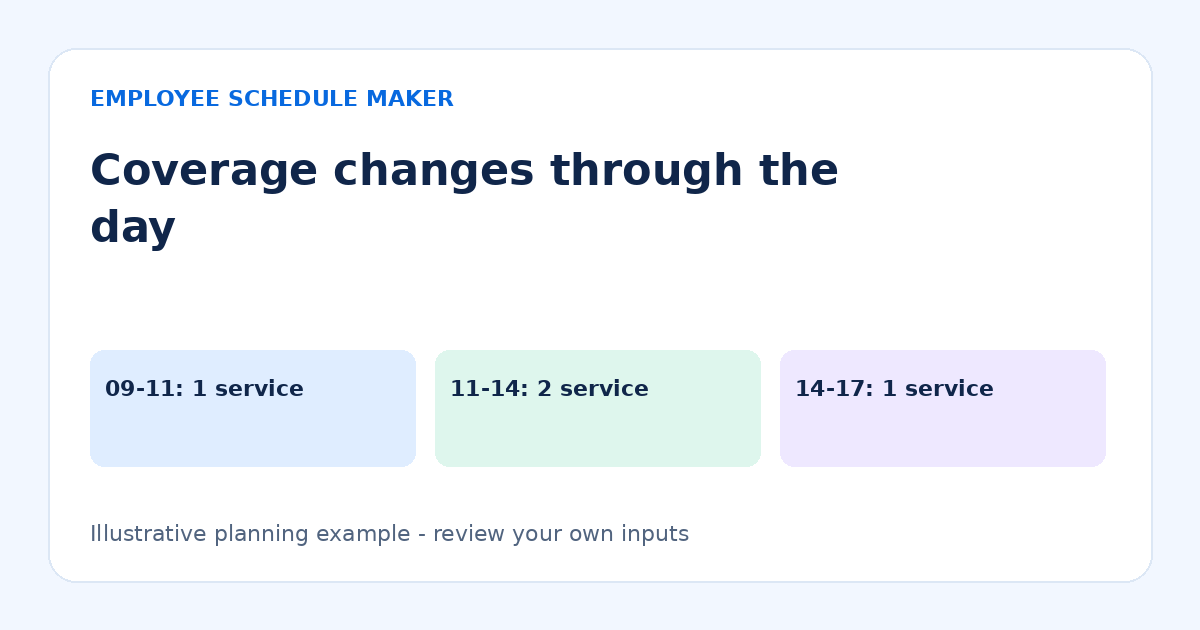
Break the operating day into periods: opening, regular service, peak demand and closing. Determine which tasks need continuity and which can be covered by a shorter shift. A four-hour assignment may be useful during a predictable rush, but a short shift with a long commute may be unattractive to an employee. Discuss the practical arrangement rather than assuming every open window should be filled.
Check the skills needed for each block. An employee available during opening is not automatically qualified to open alone. Plan supervision, handovers and training explicitly. The coverage-planning guide explains how to separate role requirements from total headcount.
A worked part-time schedule
The following fictional service assignments fit three different availability patterns. All shifts are daytime, and the break column is an unpaid deduction used only for arithmetic. Whether a particular break arrangement is appropriate must be checked separately.
| Employee | Assignments | Unpaid break per shift | Weekly paid hours |
|---|---|---|---|
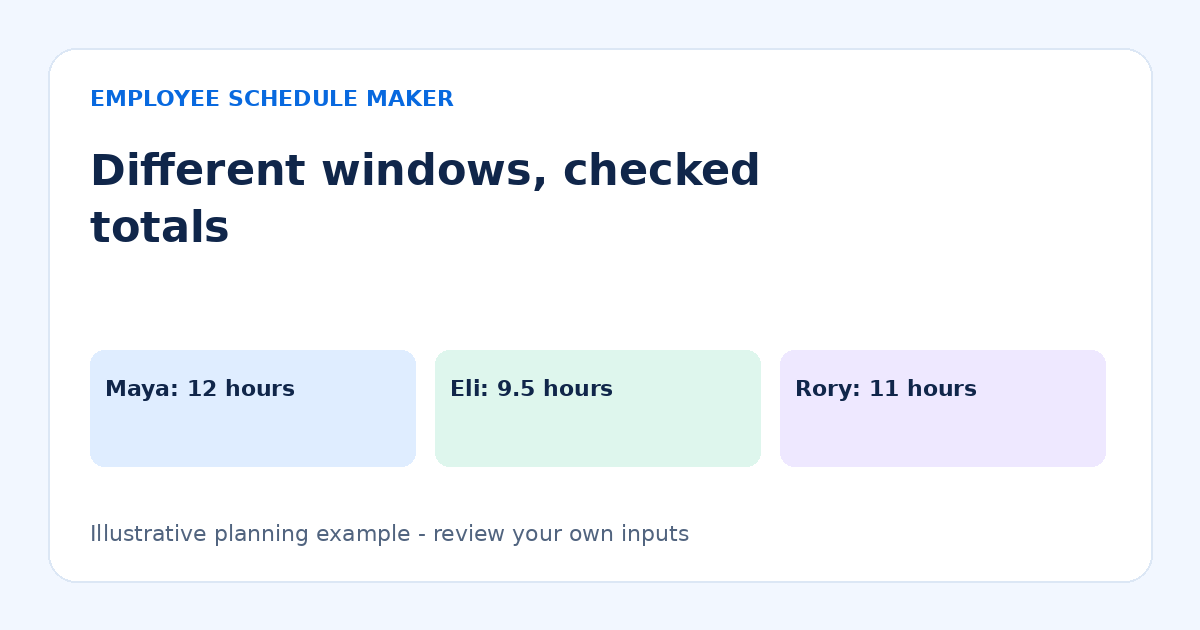
| Maya | Mon, Wed, Fri 09:00–13:00 | 0 minutes | 12 |
| Eli | Tue, Thu 16:00–21:00 | 15 minutes | 9.5 |
| Rory | Sat, Sun 10:00–16:00 | 30 minutes | 11 |
Maya has three four-hour shifts: 3 × 4 = 12 paid hours. Eli has two five-hour shifts less 0.25 hours each: 2 × 4.75 = 9.5. Rory has two six-hour shifts less 0.5 hours each: 2 × 5.5 = 11. The schedule totals 32.5 paid hours across seven assignments.
This table does not prove the shop is covered all week. There is no assignment shown for Monday afternoon, for example. Combine these assignments with the rest of the roster and check each interval. Employee totals and business coverage are related but different calculations.
Build the schedule step by step
1. Choose the correct week
Confirm the Monday start date and relevant events before entering shifts. A repeating pattern still needs a date-specific check for approved absences, changed availability or a different trading day.
2. Place essential coverage first
Assign the periods with the fewest qualified available employees. Then fill flexible work. If a required period cannot be covered, address it openly rather than assigning a shift outside someone’s confirmed availability.
3. Check paid hours and separate workdays
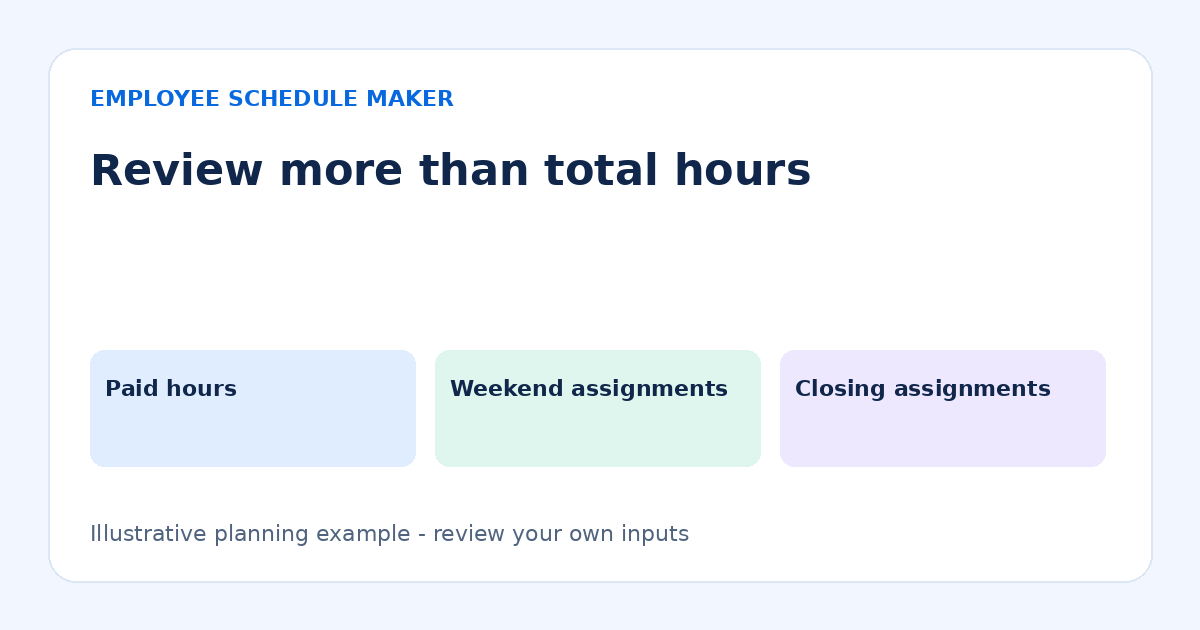
Use the work-hour calculators or editor totals to verify minutes and breaks. Also count attendance days. Twelve hours across three days and twelve hours across six days can have very different practical effects.
4. Review split shifts and adjacent assignments
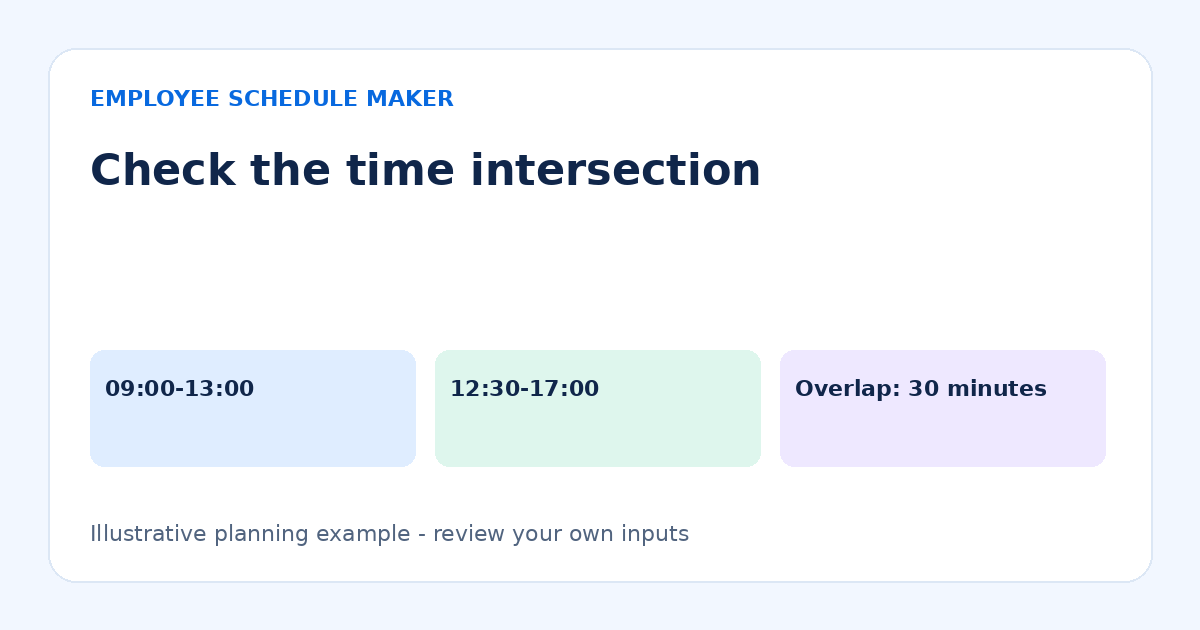
If someone has two shifts in one day, check the gap, travel and total work pattern. The editor supports multiple shifts per day and flags overlapping assignments for the same person. It does not evaluate whether a split-day arrangement suits the employee or meets all applicable requirements.
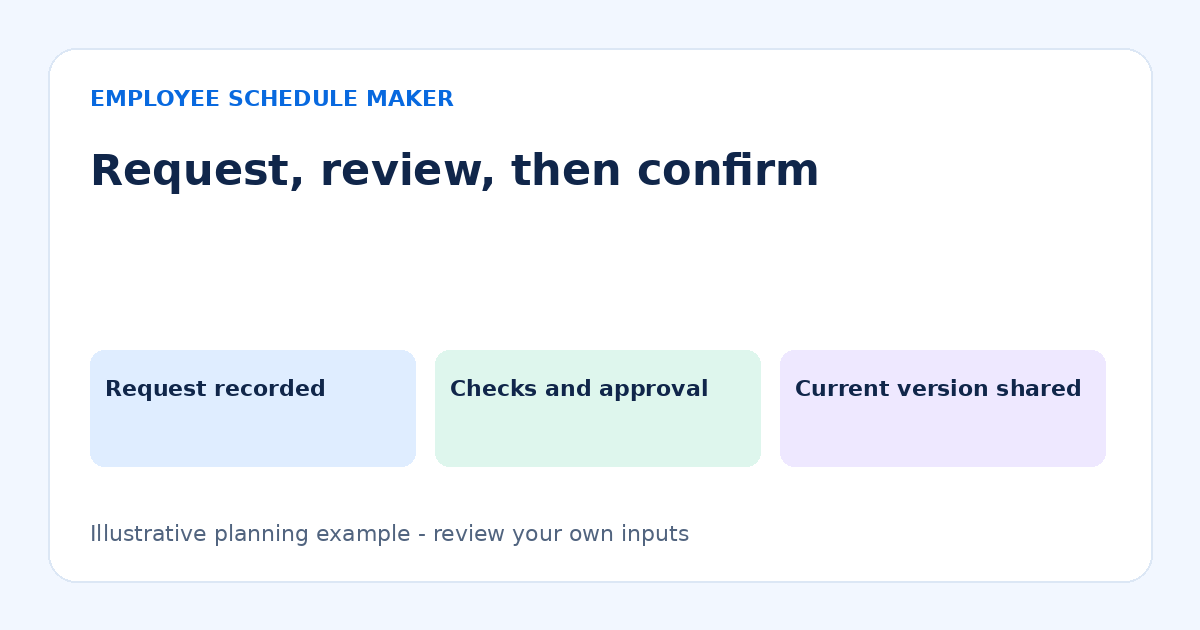
5. Confirm and share the current version
Give employees a clear way to report a mistake. Once approved through your process, share a dated PDF or printout. Keep a JSON backup of the editable workspace separately; a shared PDF is not a restorable schedule database.
Handle extra hours and changes deliberately
When demand increases, check who is available and qualified before offering an extra shift. Record whether the employee accepted, which dates are affected and whether the change is temporary. Do not silently turn an occasional extra assignment into a permanent availability assumption.
If an employee asks to swap, review both sides. A same-duration exchange may preserve weekly totals while creating a coverage or availability problem. Use a consistent schedule-change request process and notify the affected people after the decision.
Copying last week can reduce re-entry, but the copy still needs review. The tool’s copy action protects a destination week that already contains shifts. It does not decide whether the old pattern remains suitable for new availability.
Common mistakes
- Assuming all part-time employees want the same hours. Ask about the actual desired workload and current availability.
- Ignoring the edges of a shift. Include preparation, cleanup and handovers where required.
- Using breaks to force a target total. Break deductions should describe a real planned arrangement, not conceal an overlong assignment.
- Publishing multiple competing versions. Identify the current roster clearly and communicate replacements.
- Relying on browser storage alone. Browser data can be cleared. Download a JSON backup before major changes.
Review the pattern with the employee
Before repeating the example, ask whether the arrangement works in practice. Maya’s three four-hour assignments may fit her availability well, while six two-hour assignments could create an unwelcome number of trips despite the same twelve-hour total. The roster should make those attendance days visible, not hide them behind a weekly hours figure.
Consider a change from Eli’s two five-hour assignments to one six-hour and one four-hour assignment. With a 15-minute unpaid break in each, the paid total remains 9.5 hours: 5.75 plus 3.75. The total is unchanged, but the finish times and coverage contribution differ. Check whether the longer assignment fits Eli’s availability and whether the shorter one still covers the required work.
Record whether a variation is a one-week arrangement or a recurring change. Review the next relevant dates rather than automatically copying the exception. If the employee’s desired hours change, confirm that separately from their available windows. This prevents a manager from interpreting broad availability as a request for every possible assignment, or interpreting a low-hours week as a permanent reduction.
Frequently asked questions
How many hours should a part-time employee receive?
There is no single number this guide can prescribe. Consider the relevant agreement, availability, role needs and applicable obligations. The tool calculates the shifts you enter; it does not classify employment or determine entitlement.
Can a part-time employee work an overnight shift?
The editor can represent an overnight shift shorter than 24 hours. Review suitability, availability and applicable requirements separately. See the overnight guide for how hours are attributed.
Can I save different weekly patterns?
The browser workspace stores dated weeks. Navigate to the intended week and review its assignments. A JSON backup preserves employees and saved schedules; a template link replaces the current workspace only after confirmation.
Start with one reviewed week
Open the part-time employee schedule template, replace the fictional names and verify each assignment against availability. Check hours, coverage and practical workdays before sharing the approved roster.